Project Zomboid 42.20, Base Organiser 0.2.1
Less sorting. More surviving.
Use a powered crate as a sorting hub. Link your storage, choose what belongs where, and let the hub put your loot away. The dedicated server and every player need the same version. No new furniture or crafting recipe is required.
Set up your base
Stand beside a normal crate or shelf in a powered area. Right-click it, then Base Organiser then Set as sorting hub.
This also selects the hub for linking.Stand beside another container. Right-click, then Base Organiser then Link to selected hub: accept items.
Choose a group, then a category, for example Food and drinks then Pantry food.Repeat for materials, ammunition and the rest of your storage.
Link one container to Other storage then Overflow as a fallback.Open the hub's Hub overview / linked destinations to check each destination.
Drop loot in the hub, or choose Sort all linked storage to organise what is already in your linked containers.
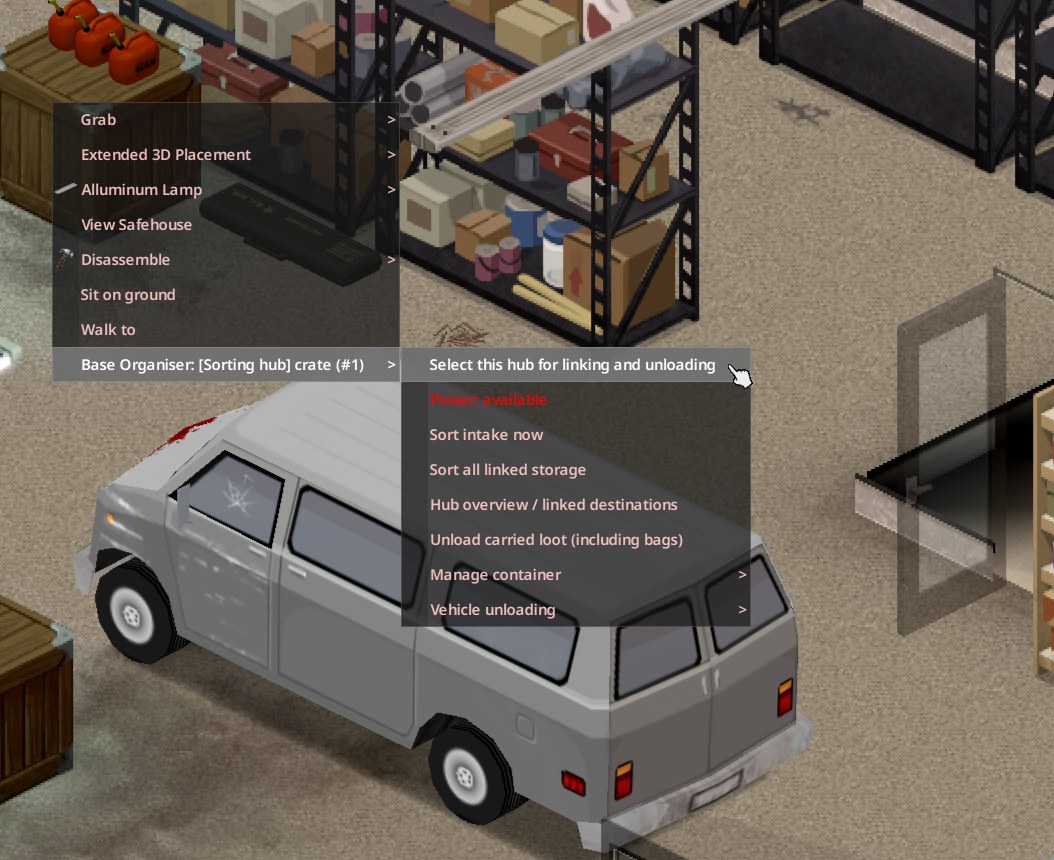
The hub needs electricity. Default reach is 30 tiles and one floor above or below. Only loaded, accessible storage linked to that hub takes part. Labelling a shelf Perishable food does not refrigerate it.
Everyday use
Dump loot
Put items in the hub. It sorts its intake every two seconds while an authorised player is nearby. This automatic pass does not scan the rest of the base.
Sort the whole group
Choose Sort all linked storage and stay near the hub. It moves up to 100 items per batch by default and keeps going until nothing else needs to move.
Unload your bags
Use Unload carried loot (including bags) on the hub, or right-click one carried bag and choose its unload action. Repeat if the batch limit is reached.
Keep your personal supplies
Right-click an item and choose Favourite. Favourited, equipped, attached, active and in-use items stay put. Favourite a bag to keep its contents out of unloading.
Unload a vehicle
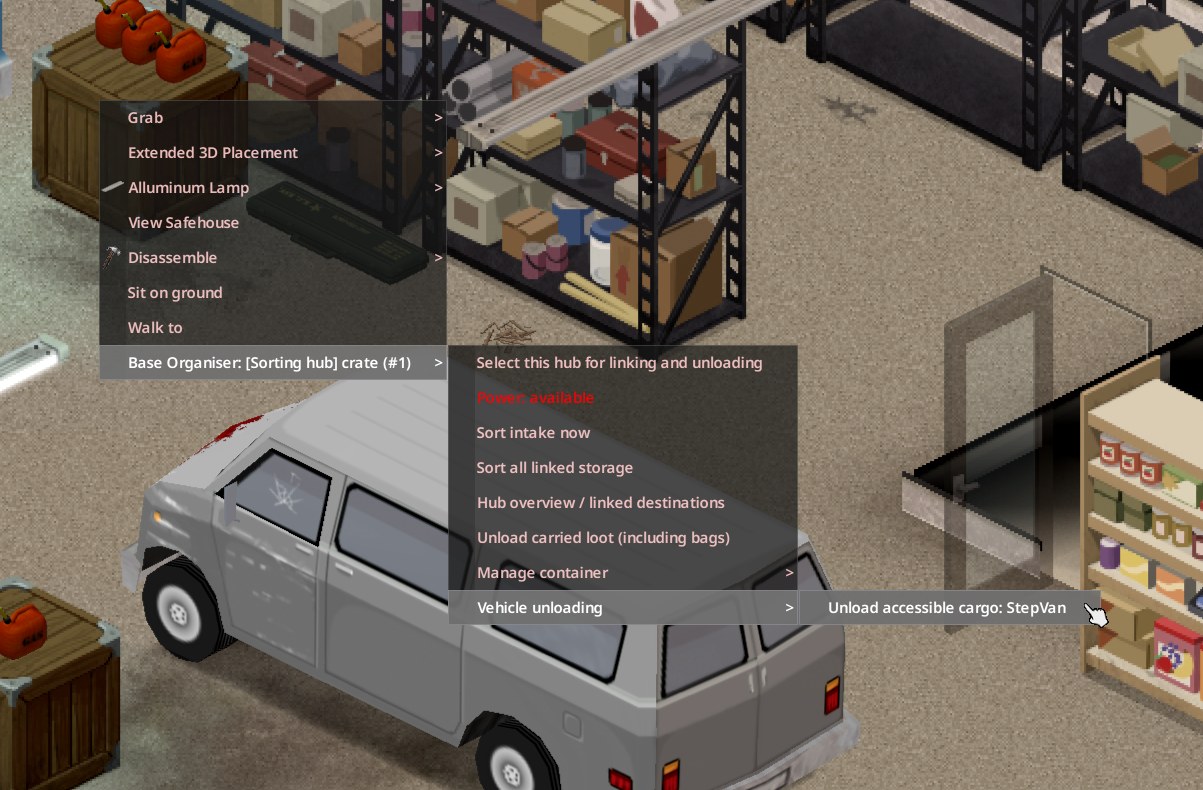
Park within the hub's range, stand within six tiles of the vehicle and unlock the cargo. Right-click the hub, then Vehicle unloading then Unload accessible cargo: [vehicle]. Loose cargo goes straight to matching destinations. Bags inside vehicles stay packed. Repeat if it reaches the batch limit.
Several hubs
Name your hubs, for example Garage and Kitchen. Each destination belongs to one hub, and linking it to another hub moves that connection. Select the right hub before linking or unloading bags, and select it again after reconnecting.
The hub overview
Right-click the hub, then Base Organiser then Hub overview / linked destinations. The title shows the hub name, how many destinations are linked, and the power and sorting state. The list includes paused and unloaded destinations, twenty to a page.
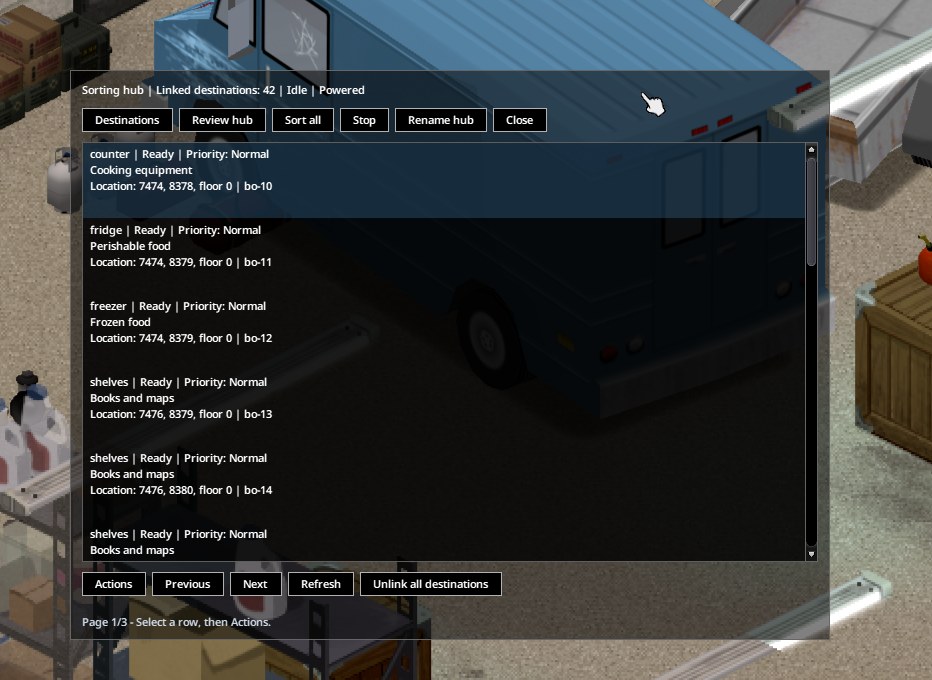
| Control | What it does |
|---|---|
| Destinations | Shows the hub's linked storage. Select a row, then Actions. |
| Review hub | Explains the items still in the hub. |
| Sort all / Stop | Starts or cancels automatic batches. Closing the window does not stop sorting. |
| Rename hub | Gives the hub a short name. |
| Actions | Review a destination's items, rename it, set its priority, toggle categories or unlink it. |
| Previous / Next / Refresh | Moves between pages and refreshes the server's snapshot. |
| Unlink all destinations | After you confirm, disconnects this hub's storage. Items and capacity stay in place. |
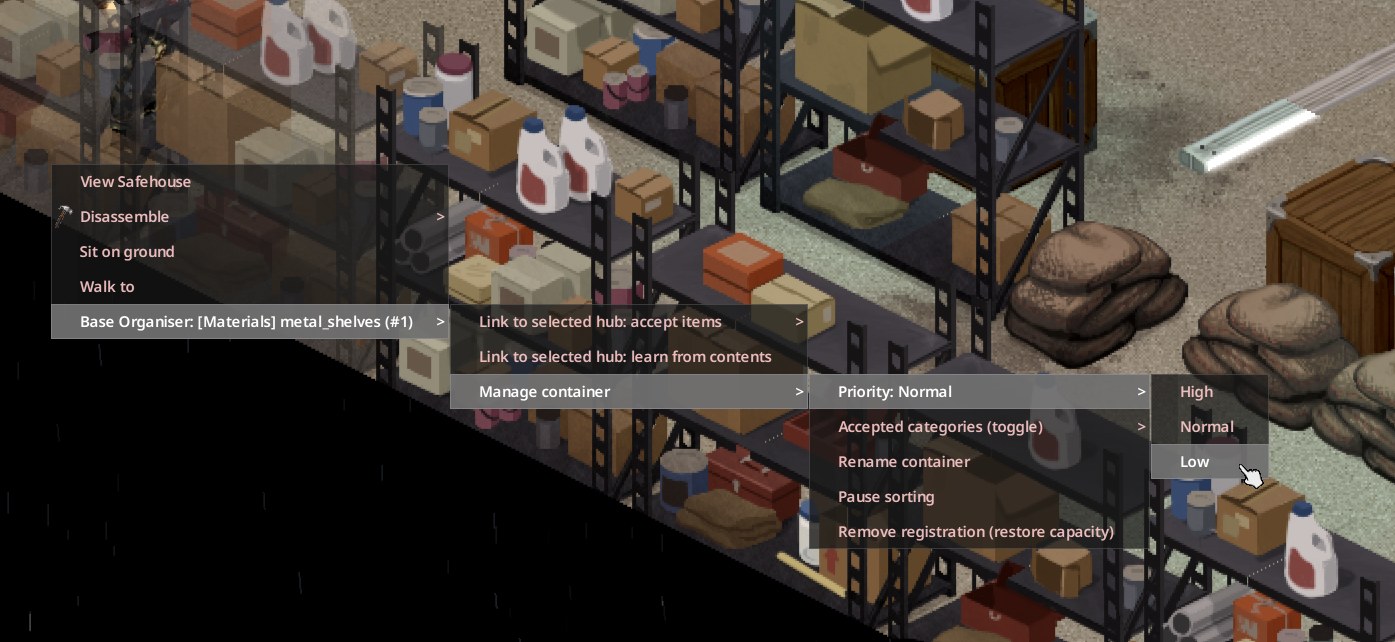
For a destination you are standing next to, the same category and priority controls are under Manage container.
Categories and priorities
A shelf can accept several categories. Open Actions then Accepted categories (toggle). Checked entries are accepted, and toggling one leaves the others alone. Choosing a fresh single-category link, or learn from contents, replaces the old rules.
Items go to the most specific match first. Within each level, High, Normal and Low priority decide which equally suitable shelf fills first, and a full shelf spills into the next. An Overflow container never beats an Ammunition container just because it has High priority. Use High for the shelf you use every day and Low for reserve storage. Sort all also moves items up into higher priority storage when there is room.
Learn from contents
Put sample items in a shelf, for example a hammer and a saw, and choose Link to selected hub: learn from contents. The shelf remembers their exact item types, up to 128 of them. The samples do not need to stay there.
| Examples | Destination |
|---|---|
| Planks, paint | Building and crafting materials |
| Flashlights, penlights, matchbooks, lighters | Lighting and fire supplies |
| Camping items, water purification tablets | Camping supplies |
| Water containers, recognised drinks | Drinks and water |
| Packaged food, boxed peas, non-perishable food | Pantry food |
| Protective gear and accessories | Clothing |
A drinks label does not mean a liquid is safe to drink. Unknown items and fluid types may need an exact item rule.
Leftovers and Overflow
Open the hub overview. For the hub itself, click Review hub. For Overflow or another destination, select its row, then Actions then Review items / Overflow.
Read each item's reason.
No matching destination, storage full, a restriction, a favourite, a bag, another hub, paused storage or unavailable storage.To create a match, select the item, then Actions then Assign this item type to a destination.
Pick the shelf from the list, then Accept [item] here. This adds an exact rule and keeps the shelf's categories.Click Sort all to move matching items out of Overflow.
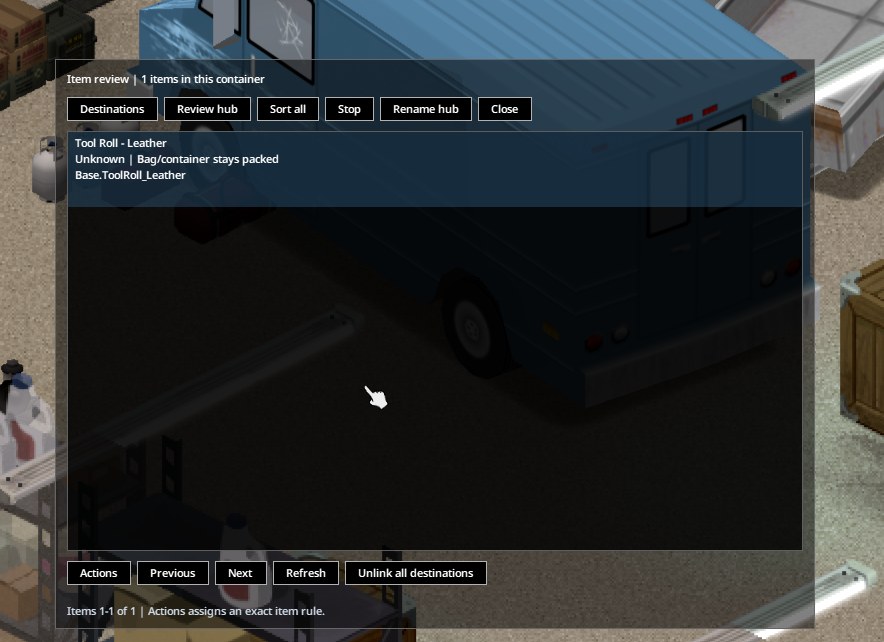
Reviews are snapshots, forty items to a page, so refresh after moving things. Storage that is not loaded cannot be fully inspected, and the review says so.
What the completion message means
| Message | Meaning |
|---|---|
| Still sorting | More batches are running. |
| Finished sorting available storage | Every move that was possible has been tried. |
| Need review | Items that could not be placed, including unmatched Overflow items. |
| Protected | Favourites, equipment, active items or packed bags deliberately stayed put. |
| Destinations skipped | Paused, inaccessible, out of range or unavailable storage was left out. Finished does not mean those were sorted. |
| Stopped | Power, range or access was lost, the hub was paused, or someone stopped the job. A disconnect or server restart also cancels it. |
Unlink or remove a hub
Unlinking disconnects storage from this hub and stops its Sort all job. Items, category settings and the larger capacity stay in place. The hub owner or an admin can unlink from the overview, including storage that is not loaded.
To remove a hub, first use Unlink all destinations. Then stand beside the hub and choose Manage container then Remove registration (restore capacity). If it holds more than its original capacity, take some items out first. To fully restore an unlinked shelf, use its own Remove registration too, or link it to another hub. Moved furniture needs to be registered again.
Install and update
Use the same version as the server you want to join. Ask the server admin which release to install.
Windows players
Close Project Zomboid, run Client Setup and check the selected Zomboid data folder. It backs up that folder before updating the mod.
Server admins
Stop the server first. On Windows, run Server Setup and pick the right server profile. Players need the matching client release before joining.
Manual install
Extract the ZIP's BaseOrganiser folder into the server account's Zomboid/mods folder and enable the mod ID BaseOrganiser in the server profile. A custom -cachedir changes the location.
Offline manual
A copy of this manual is saved at Zomboid/mods/BaseOrganiser/Manual.html and works without an internet connection.
Downloads and checksums are on the Base Organiser page.
Troubleshooting
| Problem | Check |
|---|---|
| Pantry stays empty | Check it belongs to the same hub, is unpaused, loaded, in range and has room. Use item review to see how the food is classified. An exact rule elsewhere can win over Pantry. |
| Some items went to Overflow | Review them. The matching shelf may be full or unavailable, or the item may need a new rule. Run Sort all after changing rules. |
| Vehicle option missing | Stand within six tiles of a loaded vehicle, open Vehicle unloading and unlock the cargo. |
| Capacity shows 100 | That is the intended maximum. Smaller containers may stay below 100. |
| Cannot change another player's shelf | Only its owner or an admin can edit its rules. Unlinking is controlled by the hub's owner. |
| Sorting error | The hub pauses. Check the server log before resuming and keep a save backup. If it keeps happening, send the server log and mod version to the server admin or to us. |